
Calendar & appointments
Reschedule or cancel an appointment
Move an appointment to a new time or cancel it (with an optional deposit refund).
- 1
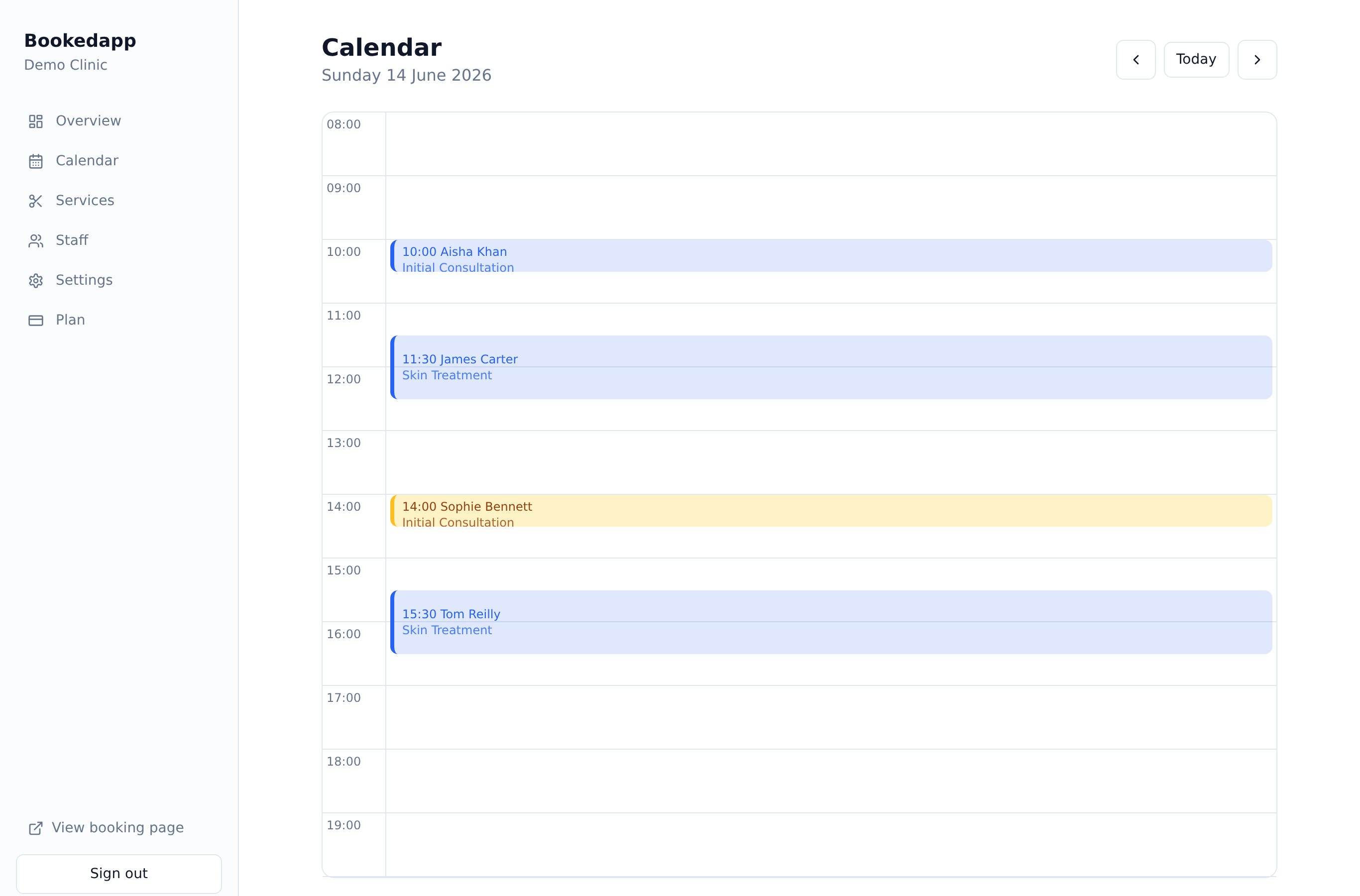
On the Calendar, click the appointment you want to change.
- 2
To move it, choose ‘Reschedule’, pick a new date and time, and confirm — the customer gets an updated confirmation automatically.
- 3
To cancel, choose ‘Cancel’; if a deposit was paid online you can refund it in one click.
- 4
The slot is freed up immediately for other bookings.
More in Calendar & appointments
Ready to get started?
Set up your booking page in minutes — start your 14-day free trial.
30-min walkthrough No commitment Google Meet
NAM
Bookedapp product teamHere to help you get set up
- Set up your booking page with your services
- Switch on AI no-show prediction & reminders
- Answer your questions — no pressure